JupyTutor is a JupyterLab extension that gives students feedback on their autograder results. When a student runs a grader cell, a chat panel appears under the output with a few suggested questions and a box for their own. Because JupyTutor reads the notebook around that cell, its answers refer to the actual question and the actual test that failed.
What it needs
Two things have to be in place, and nothing appears if either is missing:
The extension installed on the hub, from the
jupytutorpackage.Notebooks carrying JupyTutor metadata, which decides where the panel shows up and what it offers.
JupyTutor is not installed on CloudBank hubs today. Setting it up takes more than adding a package, so talk to CloudBank before you plan a course around it. Getting help covers how to reach us.
Using it
Run a grader cell and the panel opens beneath the output.
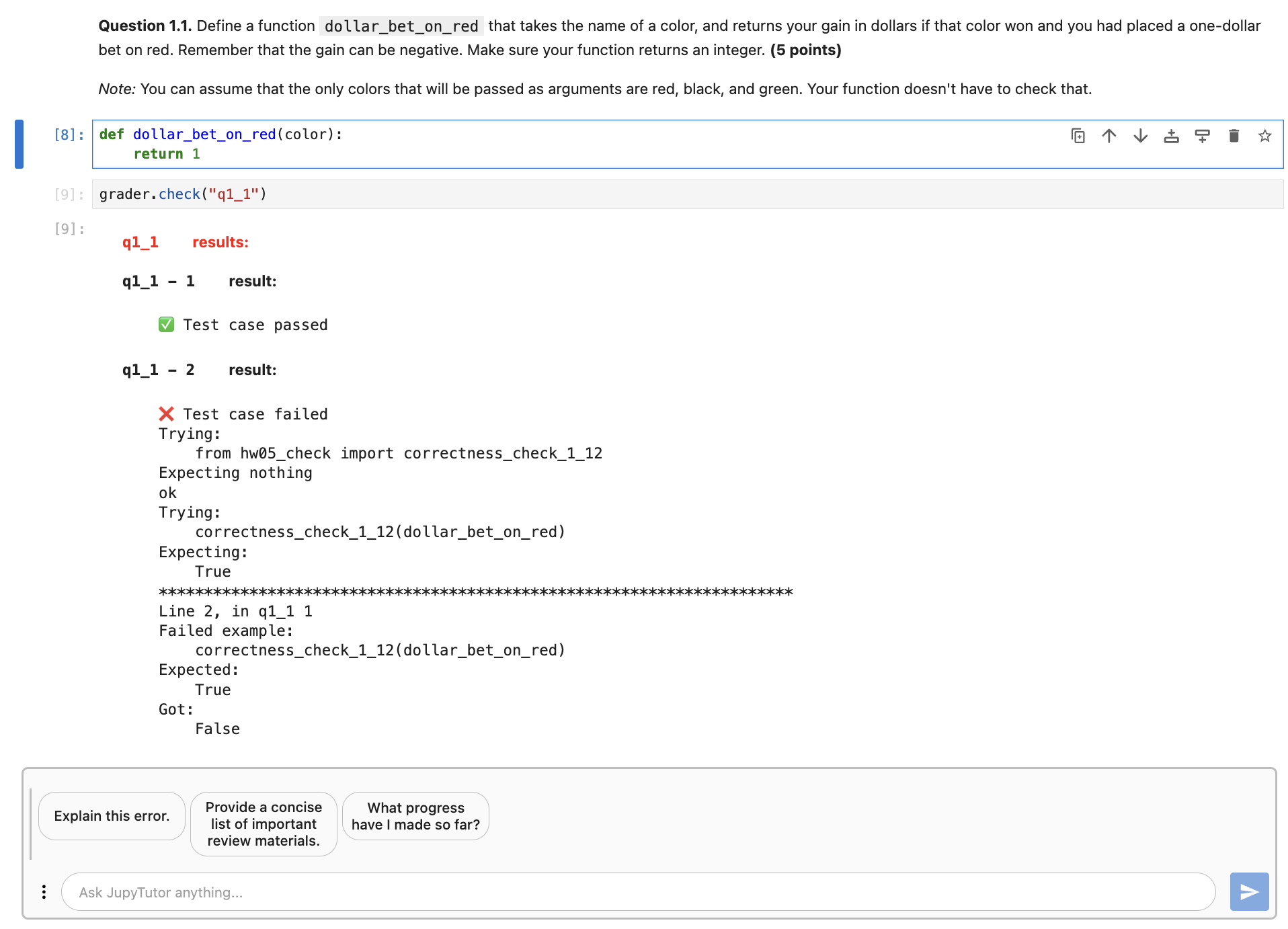
JupyTutor appears under the grader cell once you run it.
The panel opens whether or not the tests passed, and the suggested questions change to match:
| Your result | What JupyTutor offers |
|---|---|
| Some tests failed | Explain this error. / Provide a concise list of important review materials. / What progress have I made so far? |
| All tests passed | I still don’t feel confident in my answer. / Provide me three important review materials. / Can I make further improvements? |
Ignore the suggestions and type your own question if you would rather.
What JupyTutor can see
JupyTutor reads the cells around the one you ran, so it has the question text, your code, and the grader output. It can also follow links into the course textbook and quote back the relevant section.
The example below comes from a Data 8 homework. The student defined
dollar_bet_on_red to return 1 for every color, which passes the test for red and fails the one
for black. JupyTutor points out that the function never looks at its color argument, then links
the textbook section on conditional statements.
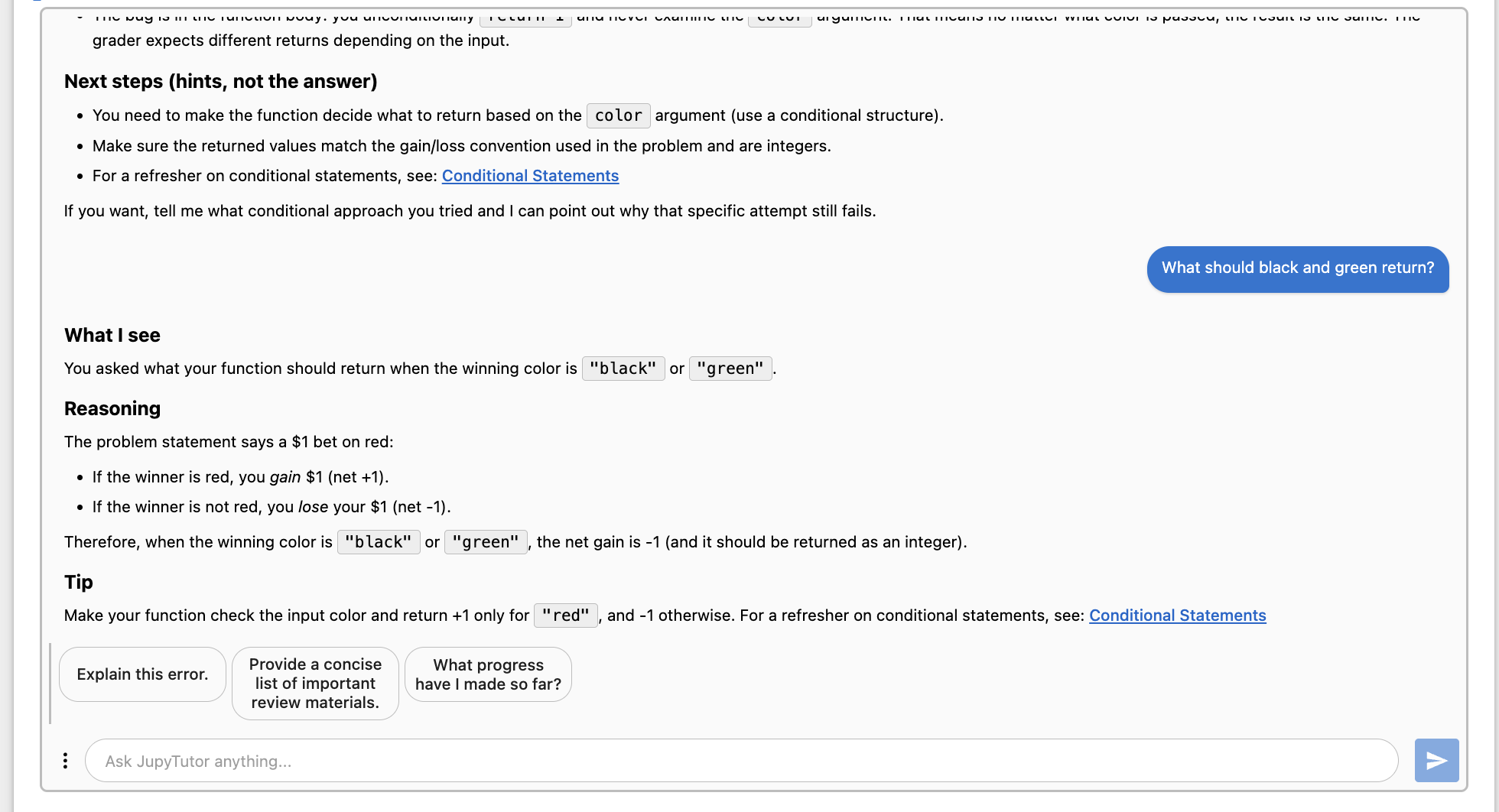
Replies are framed as hints and point back at the course textbook.
Answers are written as hints rather than finished code, and the student can keep asking follow-up questions in the same panel.
Notebook metadata
A notebook opts in through a jupytutor block in its metadata. Chat stays off everywhere until a
rule turns it on, so each rule describes a situation and what to offer in it. This one covers a code
cell that raised an error:
{
  "_comment": "Code cell with an execution error",
  "when": { "AND": [{ "cellType": "code" }, { "hasError": true }] },
  "config": {
    "chatEnabled": true,
    "chatProactive": true,
    "quickResponses": ["Explain this error."]
  }
}
The same block controls which sites JupyTutor may follow for context, which is how the textbook links above work. For a working reference, read the metadata in any Data 8 v2 notebook rather than writing a set of rules from scratch.
Data 8 materials
Data 8 Spring 2026 materials already carry JupyTutor metadata, so adopting them is the shortest path to a working setup. JupyTutor integration is a version 2 feature and is not in version 1.
The Data 8 adoption guide walks through forking the materials, requesting instructor access, setting up the Canvas shell, and autograding.