Some hubs offer a choice of server types when a student signs in, such as a CPU-only server and a GPU server, each with its own images. Only hubs set up this way have the Server Options page below, and only they need autostart links; hubs without profiles choices always autostart!
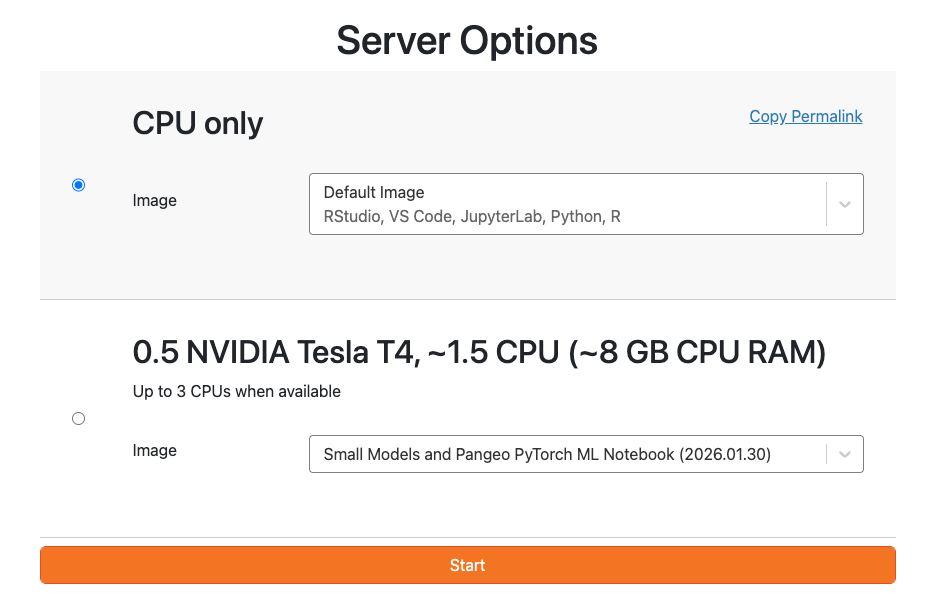
The Server Options page. Each profile has its own images, and Copy Permalink sits at the top right.
Normally a student signs in, picks a profile and an image on this page, and presses Start. An autostart link skips the page. The student signs in and their server starts with the profile and image you chose.
Make a link
Open your hub, choose the profile and image you want students to get, and select Copy Permalink.
Open the Autostart Link Builder and paste the permalink into the first box.
Optional: to also give students your materials, paste an nbgitpuller link for the same hub into the second box. Loading Files onto the Hub covers making one. Leave the box empty to start the server only.
Choose Copy link and share it with your class.
What each combination does
| You paste | The link does |
|---|---|
| Permalink only | Signs the student in and starts their server with the image your permalink includes |
| Permalink and nbgitpuller link | Signs in, starts the server with the image your permalink includes, then pulls your repository and opens the file you chose |
With the permalink alone you get the same link the hub gave you. The only change is that automatic start is switched on. The Copy Permalink button always writes it with autostart set to false, and the link builder sets it to true.
Things to know
Both links have to be for the same hub. The builder refuses a pair that point at different hubs.
A student who already has a server running goes straight to the pull, or straight to their server, without starting a second one. A student who needs to switch between GPU and CPU machines should first choose File > Hub Control Panel and press Stop Server, then use the link.
Try it first. The builder’s Try it button opens the link in a new tab.
If a link does not behave the way you expect, getting help covers where to ask.