There are two ways to put data in front of a class, and the size of the data decides which one you want. Small files travel with the assignment. Large files belong in the hub’s shared folder, where one copy serves everyone.
Files that travel with the assignment
An nbgitpuller link copies the whole repository folder, not just the notebook. So every file you put next to an assignment in the repository lands next to it on the hub.
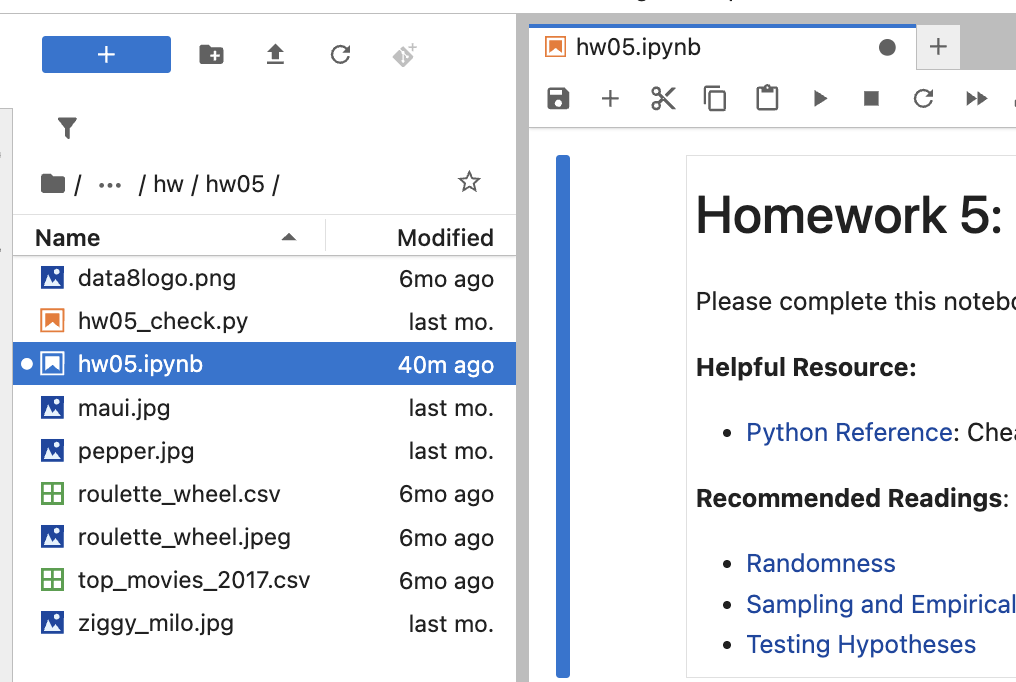
Everything in the assignment’s repository folder arrives with the notebook.
That means plain relative paths work, with no setup and nothing for students to configure:
from datascience import Table
scores = Table.read_table("roulette_wheel.csv")
import pandas as pd
scores = pd.read_csv("roulette_wheel.csv")Every student gets their own copy of those files, which is what you want while they are small.
When one copy is enough
Per-student copies stop making sense as files grow. A 10 GB dataset in a repository becomes 10 GB in each student’s storage, so a class of 100 is carrying 1000 GB of the same data.
The hub’s shared folder holds one copy that everyone reads. The same 10 GB dataset stays 10 GB no matter how many students are enrolled.
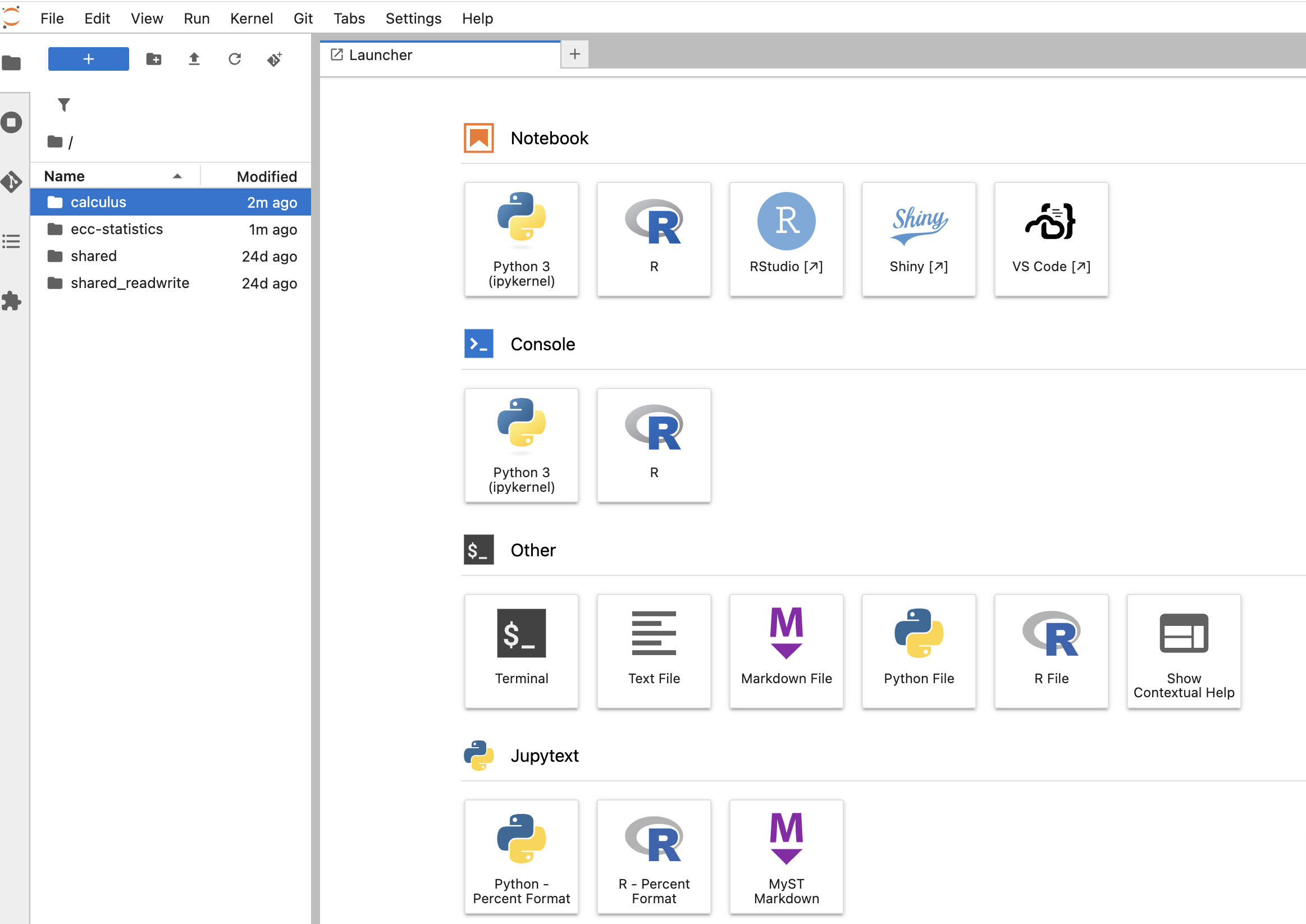
shared and shared_readwrite sit at the top of your home directory, beside your course folders.
shared and shared_readwrite
These are two views of one folder, with different permissions:
| Folder | Who sees it | Access |
|---|---|---|
shared | Everyone on the hub | Read only |
shared_readwrite | Hub admins, which means instructors | Read and write |
Because they are the same folder underneath, a file you write through shared_readwrite appears
right away in everyone’s shared. Nothing writes to shared itself, which is what keeps a student
from deleting a dataset the whole class depends on.
If you are teaching and do not see shared_readwrite, you do not have admin access on your hub yet.
Getting help covers how to ask for it.
Reading from shared in a notebook
The shared folders sit at the top of your home directory, not beside your notebook, so a bare filename will not find them. Path from your home directory instead:
import pandas as pd
census = pd.read_csv("~/shared/census-2020.csv")
If a library does not expand ~, build the path yourself:
from pathlib import Path
shared = Path.home() / "shared"
census = pd.read_csv(shared / "census-2020.csv")Getting data into shared
Put files in shared_readwrite and they become readable by everyone. You can upload them through
JupyterLab, or open a terminal on the hub and pull them in with curl or wget.
For datasets too large for either of those to be practical, talk to CloudBank before the term starts. Getting help covers how to reach us.